Email guide · YouTube
How to embed a YouTube video in an email
Pasting YouTube's embed code into an email doesn't give you a video. Here's how to add a YouTube video that every reader can open, in Gmail, Outlook, Mailchimp and other email tools.
PostCapture guide · Updated
Short answer
You can't embed a playable YouTube video in most emails. YouTube's embed code is an iframe, and Gmail and Outlook don't run iframes.
Instead, send an image of the video linked to the YouTube URL: the thumbnail with YouTube's play label, the title and the channel. One click opens the video on YouTube.
Why YouTube embed code fails in email
On a website you embed a YouTube video with the iframe code from Share → Embed. Email clients don't run iframes or scripts, so in Gmail and Outlook that code never becomes a video for the reader.
The HTML5 video tag doesn't help either: only a few clients, such as Apple Mail, play it, and YouTube doesn't give you a video file to use with it. The reliable way to put a YouTube video in an email is a linked image that looks like the video. Our guide to video in email covers which email clients support what.
Step 1: Copy the video link
- On a computer, open the video, click Share, then Copy. In the YouTube app, tap Share → Copy link.
- To start the video at a certain moment, tick Start at in the Share window before you copy the link.
- Make sure the video is public or unlisted, so everyone on your list can watch it.
Step 2: Make the thumbnail
Paste the link into PostCapture. It builds the image from the video's YouTube data: the thumbnail with YouTube's red play label, the title, views and channel.
In the editor:
- Keep the uploader's thumbnail or pick one of three frames YouTube captures automatically.
- Pick a template and a light or dark theme that suits your email.
- Choose the Auto format to fit the image to the card and, on a computer, HD quality for sharp results on high-resolution screens.
- Click Download image for a PNG, or use the copy button to paste it straight into a message.
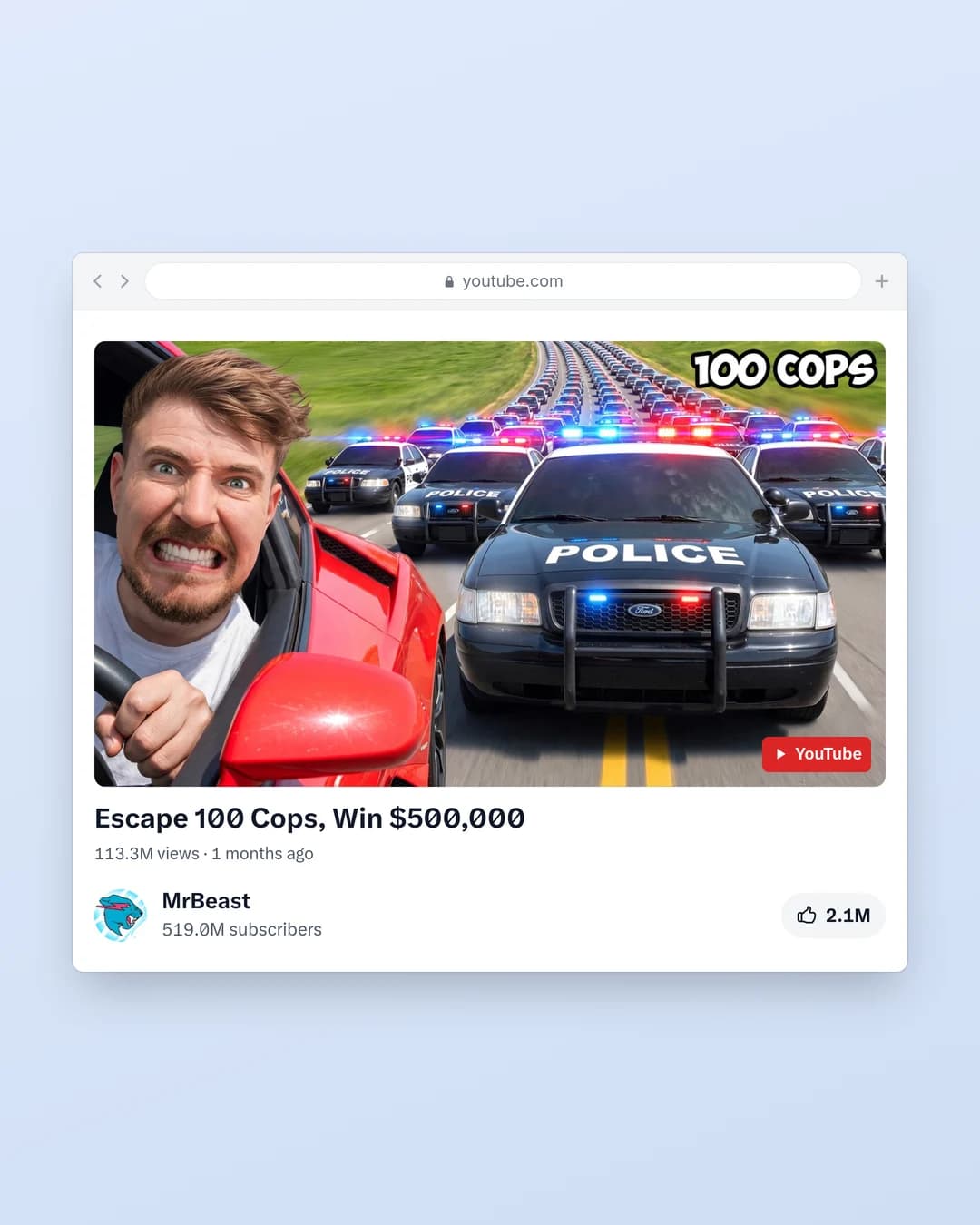
Why not just save YouTube's thumbnail? You can, but the raw thumbnail has no play label, title or channel. Readers may not see that it's a video, or who made it.
Step 3: Add it to your email and link it
Gmail
- Click Compose, then the Insert photo icon. Upload the PNG and choose Inline, or paste a copied image.
- Click the image, press Ctrl+K (Cmd+K on a Mac), paste the YouTube link and click OK.
Embed a YouTube video in an Outlook email
- Choose Insert → Pictures and add the PNG to the message body, or paste a copied image.
- Select the image, choose Insert → Link or press Ctrl+K, and paste the YouTube link.
- If your Outlook version won't link an image, add a text link to the video right under it.
Mailchimp
Mailchimp's Video content block handles long-form YouTube videos on its own: it shows the thumbnail with a play icon. For YouTube Shorts, Mailchimp's help says to upload an image instead. Use an Image block with the PostCapture PNG and paste the YouTube link into its link field. That also works for regular videos when you want the title and channel in the image.
Kit, beehiiv and other email platforms
Add an Image block, upload the PNG, paste the YouTube link into the block's link field and write alt text such as “Play video: [video title]”. Send yourself a test and click the image before you send to your list.
YouTube Shorts in email
Shorts are vertical, so a landscape frame crops them. Paste the Shorts link (youtube.com/shorts/…). If the card crops it to a wide frame, set YouTube Shorts format to Portrait to keep the full 9:16 thumbnail with its Shorts label, or pick a template like Poster, which shows Shorts upright. Portrait images are tall, so in the email give them about half the content width.

Just sending a link?
To send a YouTube video to one person, YouTube's Share menu has an Email option that opens your email app with the link filled in. The recipient sees a plain link. For newsletters and marketing emails, a linked image shows what the video is before anyone clicks.
Making these every week? Pro includes 500 images a month without the watermark, plus the Screenshot API and MCP connector for making them from code or an AI assistant. PostCapture doesn't host images for email, so upload each PNG to your email tool.
Questions, answered
Can you embed a YouTube video in an email?
Not with YouTube's embed code: it's an iframe, and Gmail and Outlook don't run iframes. Add an image of the video, with the thumbnail, title and channel, and link it to the YouTube URL. One click opens the video.
How do I send a YouTube video in an email?
Copy the link from YouTube's Share button and paste it into your email. For a visual version, turn the link into a thumbnail image with PostCapture, insert the image in the email and link it to the same URL.
How do I embed a YouTube video in an Outlook email?
Insert the thumbnail image with Insert → Pictures, select it, choose Insert → Link (or press Ctrl+K) and paste the YouTube URL. The video opens in the browser when the reader clicks the image.
Can I put a YouTube Short in an email?
Yes, as a linked image. Paste the Shorts link into PostCapture and set YouTube Shorts format to Portrait, or pick a template like Poster, to keep the full vertical thumbnail with its Shorts label. Mailchimp's own video block doesn't support Shorts, so an image is the way to add one there.
Can the video start at a specific time?
Yes. In YouTube's Share window, tick "Start at" before you copy the link, and use that link on the image. The image itself still shows the video's thumbnail.
Does it work with private or unlisted videos?
Public and unlisted videos play for anyone with the link. Private videos only play for people the owner has invited, so they're a poor fit for an email to a list. PostCapture makes its images from public videos.
Is it free?
Every new account gets 3 free images, one time, with a small PostCapture watermark. Pro ($10/month, or $96/year) removes the watermark and includes 500 images a month.